> ## Documentation Index
> Fetch the complete documentation index at: https://context7-ctx7-2818-search-api-docs.mintlify.site/llms.txt
> Use this file to discover all available pages before exploring further.
# Cursor
> Using Context7 with Cursor
Context7 brings up-to-date library documentation directly into Cursor. Instead of getting outdated code examples from training data, you get current documentation from source repositories.
## Installation
Run the setup command to configure Context7 for Cursor:
```bash theme={null}
npx ctx7 setup --cursor
```
Authenticates via OAuth, generates an API key, and installs the appropriate skill. You can choose between CLI or MCP mode.
For manual MCP installation or other configuration options, see [All MCP Clients](/resources/all-clients).
***
## Setting Up Rules
With `ctx7 setup`, a skill is installed that triggers Context7 automatically. If you prefer to use a rule instead, add one in Cursor.
Go to `Cursor` → `Settings...` → `Cursor Settings` → `Rules and Commands`. You can also press `Cmd+Shift+P` (or `Ctrl+Shift+P` on Windows/Linux) and type "Cursor Settings".
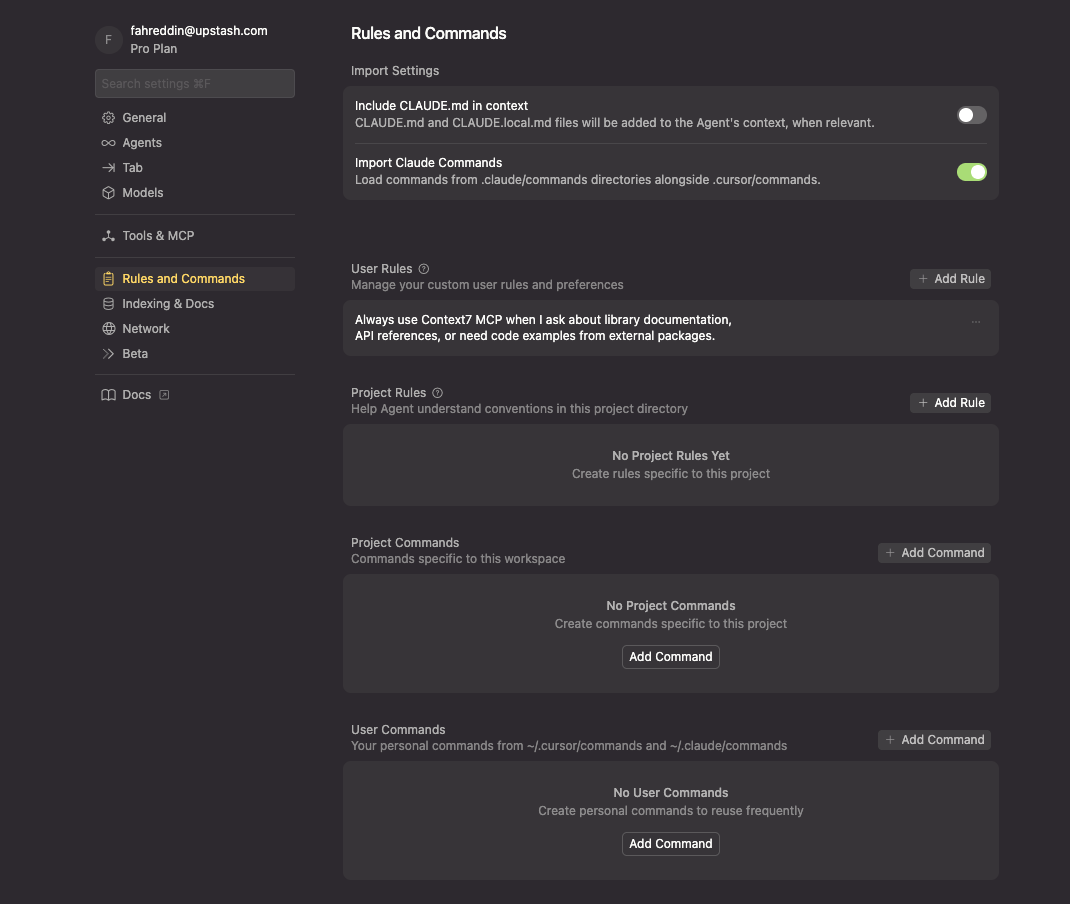 ```
Always use Context7 MCP when I ask about library documentation,
API references, or need code examples from external packages.
```
Create a `.cursorrules` file in your project root:
```
# Context7 Integration
When the user asks about:
- Library APIs or documentation
- Framework setup or configuration
- Code examples for external packages
- How to use a specific library feature
Automatically use Context7 MCP to fetch current documentation. Don't rely on training data for library-specific code.
```
This makes Context7 part of your project's standard workflow and can be version-controlled.
***
## Using Context7
Add "use context7" to your prompts to fetch current documentation:
```
use context7 to show me how to set up middleware in Next.js 15
use context7 for Prisma query examples with relations
use context7 for the Supabase syntax for row-level security
```
If you know the library ID, use it directly to skip resolution:
```
use context7 with /supabase/supabase for authentication docs
use context7 with /vercel/next.js for app router setup
```
***
## Cursor Cloud Agents
Cursor Cloud Agents use MCP servers configured for the cloud agent, not the MCP configuration from your local Cursor installation. If Context7 works in the IDE but a Cloud Agent reports an anonymous quota, add an authenticated HTTP server in the Cloud Agent UI.
The MCP connection is independent of the model selected for the agent. You can
use the same Context7 server with any model available in Cursor Cloud Agents.
### Before you begin
Create an API key in the [Context7 dashboard](https://context7.com/dashboard). Keep the key available while you complete the steps below, but do not commit it to your repository or include it in screenshots.
### Add Context7 to Cursor Cloud Agents
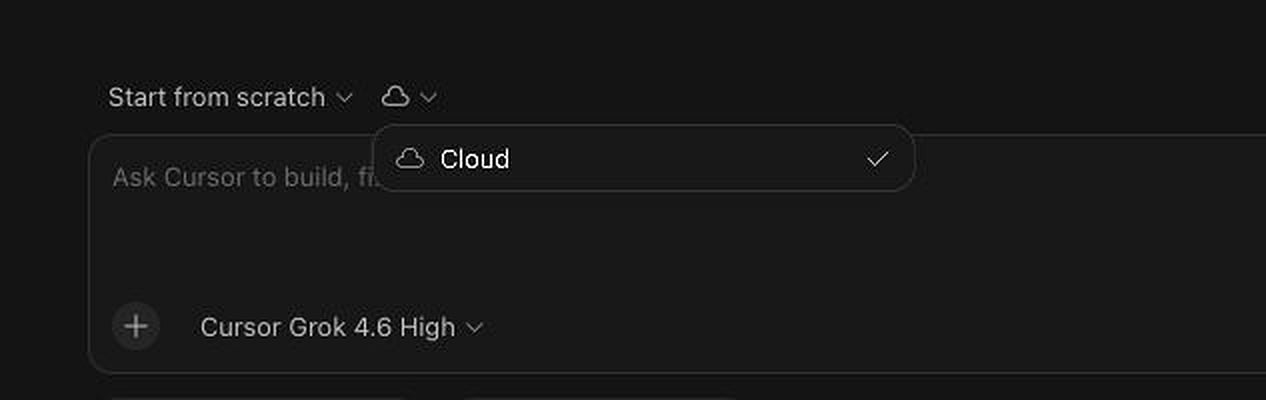
Go to [cursor.com/agents](https://cursor.com/agents) and start a new agent. If you start the agent from the Cursor desktop app, select **Cloud** from the environment menu below the agent input.
```
Always use Context7 MCP when I ask about library documentation,
API references, or need code examples from external packages.
```
Create a `.cursorrules` file in your project root:
```
# Context7 Integration
When the user asks about:
- Library APIs or documentation
- Framework setup or configuration
- Code examples for external packages
- How to use a specific library feature
Automatically use Context7 MCP to fetch current documentation. Don't rely on training data for library-specific code.
```
This makes Context7 part of your project's standard workflow and can be version-controlled.
***
## Using Context7
Add "use context7" to your prompts to fetch current documentation:
```
use context7 to show me how to set up middleware in Next.js 15
use context7 for Prisma query examples with relations
use context7 for the Supabase syntax for row-level security
```
If you know the library ID, use it directly to skip resolution:
```
use context7 with /supabase/supabase for authentication docs
use context7 with /vercel/next.js for app router setup
```
***
## Cursor Cloud Agents
Cursor Cloud Agents use MCP servers configured for the cloud agent, not the MCP configuration from your local Cursor installation. If Context7 works in the IDE but a Cloud Agent reports an anonymous quota, add an authenticated HTTP server in the Cloud Agent UI.
The MCP connection is independent of the model selected for the agent. You can
use the same Context7 server with any model available in Cursor Cloud Agents.
### Before you begin
Create an API key in the [Context7 dashboard](https://context7.com/dashboard). Keep the key available while you complete the steps below, but do not commit it to your repository or include it in screenshots.
### Add Context7 to Cursor Cloud Agents
Go to [cursor.com/agents](https://cursor.com/agents) and start a new agent. If you start the agent from the Cursor desktop app, select **Cloud** from the environment menu below the agent input.
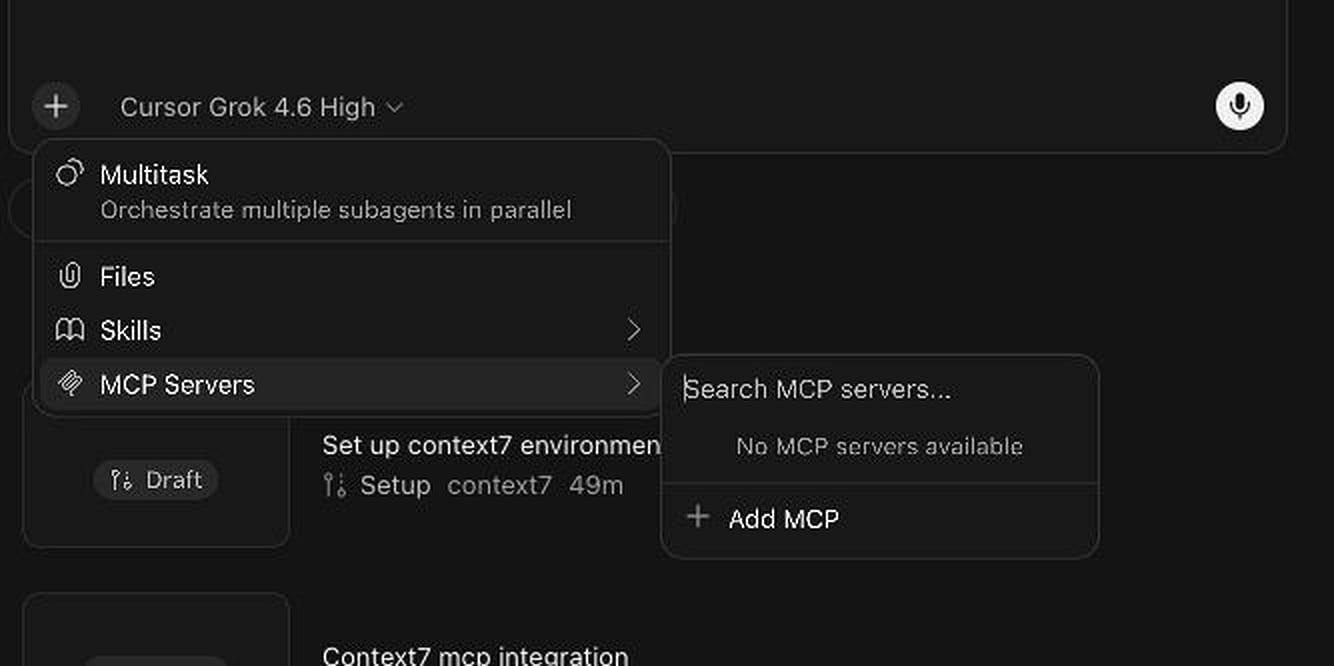
 Select **+** (**Add context and tools**), then **MCP Servers** and **Add MCP**.
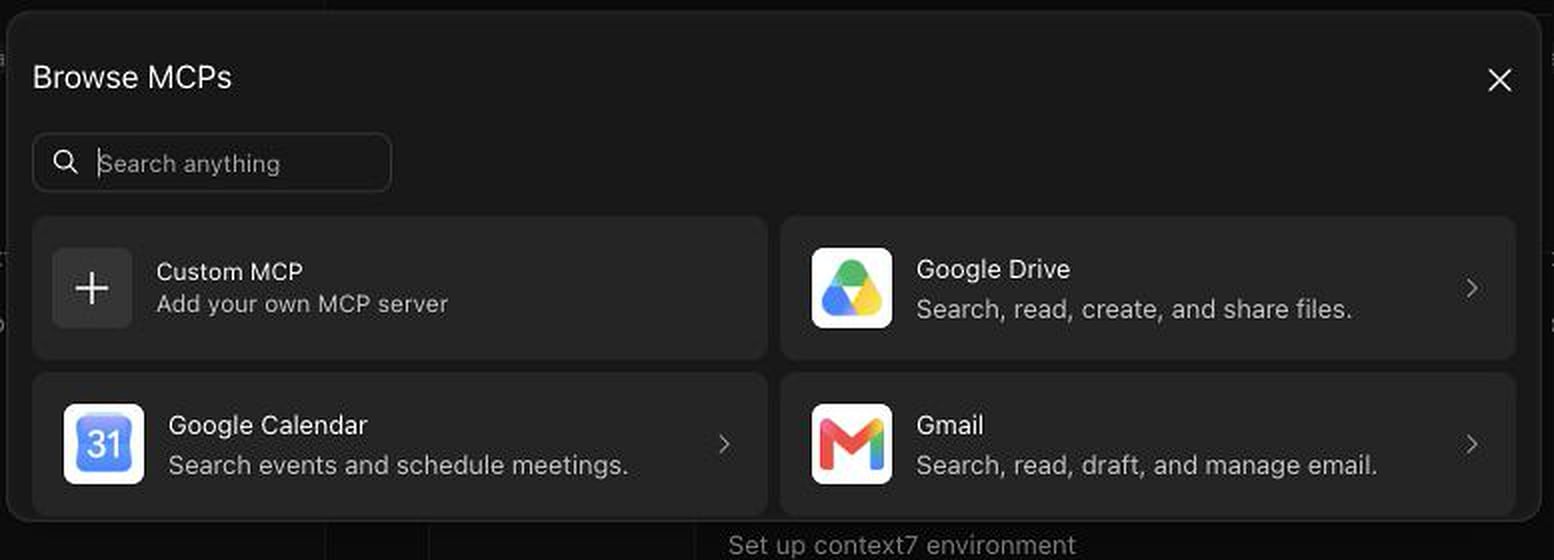
 In the MCP browser, select **Custom MCP**.
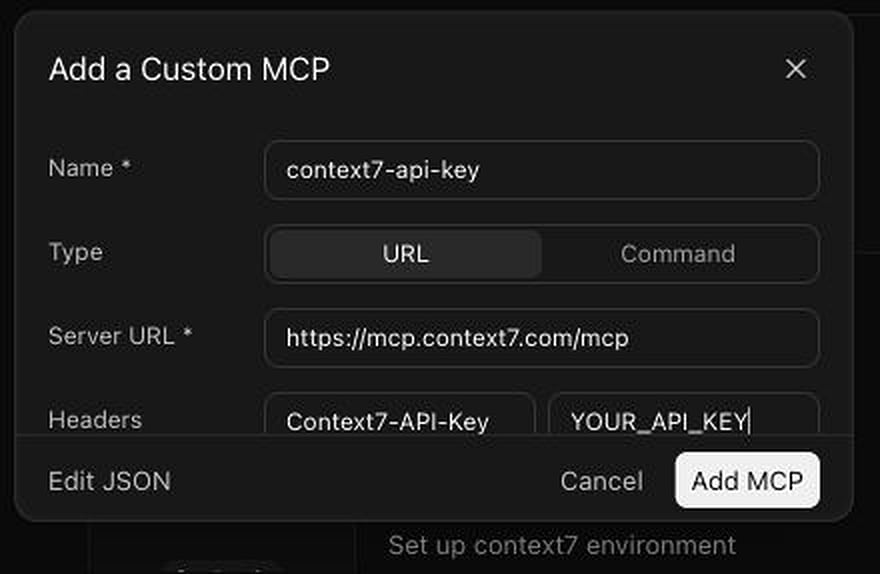
 Enter the following values:
| Field | Value |
| ---------------- | ------------------------------ |
| **Name** | `context7-api-key` |
| **Type** | `URL` |
| **Server URL** | `https://mcp.context7.com/mcp` |
| **Header key** | `Context7-API-Key` |
| **Header value** | Your Context7 API key |
The distinct `context7-api-key` name avoids a namespace collision when the OAuth-based Context7 plugin is also installed. If you do not use the plugin, you can name the server `context7`.
Context7 also accepts `Authorization: Bearer YOUR_API_KEY`, as shown in the general MCP client examples. This guide uses `Context7-API-Key` because that configuration was verified with Cursor Cloud Agents and keeps API-key authentication separate from the plugin's OAuth connection.
Use a hyphenated header name in Cursor Cloud. Header names containing
underscores, such as `CONTEXT7_API_KEY`, can be dropped by Cursor's proxy.
`CONTEXT7_API_KEY` remains the environment variable name for local stdio
connections.
Enter the following values:
| Field | Value |
| ---------------- | ------------------------------ |
| **Name** | `context7-api-key` |
| **Type** | `URL` |
| **Server URL** | `https://mcp.context7.com/mcp` |
| **Header key** | `Context7-API-Key` |
| **Header value** | Your Context7 API key |
The distinct `context7-api-key` name avoids a namespace collision when the OAuth-based Context7 plugin is also installed. If you do not use the plugin, you can name the server `context7`.
Context7 also accepts `Authorization: Bearer YOUR_API_KEY`, as shown in the general MCP client examples. This guide uses `Context7-API-Key` because that configuration was verified with Cursor Cloud Agents and keeps API-key authentication separate from the plugin's OAuth connection.
Use a hyphenated header name in Cursor Cloud. Header names containing
underscores, such as `CONTEXT7_API_KEY`, can be dropped by Cursor's proxy.
`CONTEXT7_API_KEY` remains the environment variable name for local stdio
connections.
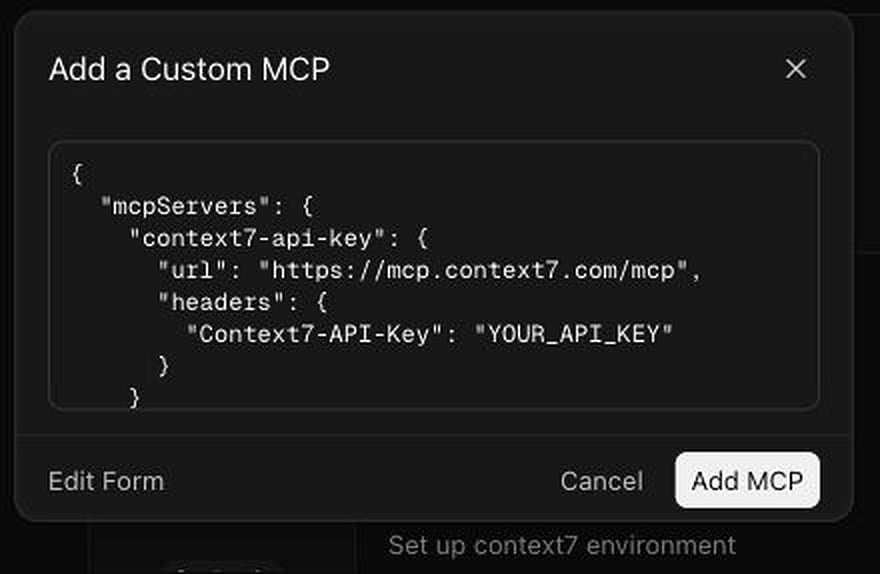
 Alternatively, select **Edit JSON** and use this configuration:
```json theme={null}
{
"mcpServers": {
"context7-api-key": {
"url": "https://mcp.context7.com/mcp",
"headers": {
"Context7-API-Key": "YOUR_CONTEXT7_API_KEY"
}
}
}
}
```
Alternatively, select **Edit JSON** and use this configuration:
```json theme={null}
{
"mcpServers": {
"context7-api-key": {
"url": "https://mcp.context7.com/mcp",
"headers": {
"Context7-API-Key": "YOUR_CONTEXT7_API_KEY"
}
}
}
}
```
 Select **Add MCP**. Before starting the run, open **+** → **MCP Servers** again and confirm that `context7-api-key` is enabled.
A green status confirms that Cursor initialized the MCP server. It does not by itself prove that the request was authenticated.
Start a new Cloud Agent run and test both tools:
```text theme={null}
Use Context7 to resolve the library ID for Next.js, then query its documentation
for middleware. Tell me which Context7 tools you called.
```
To verify authentication conclusively, query a private library that belongs to the Context7 account associated with the API key:
```text theme={null}
Use Context7 to query . Summarize its installation docs.
```
If the private library can be read, the Cloud Agent is using the API key. If the agent reports **Monthly quota exceeded** even though the key has quota, the request is reaching Context7 anonymously; recheck the header name and start a new run after saving the MCP server.
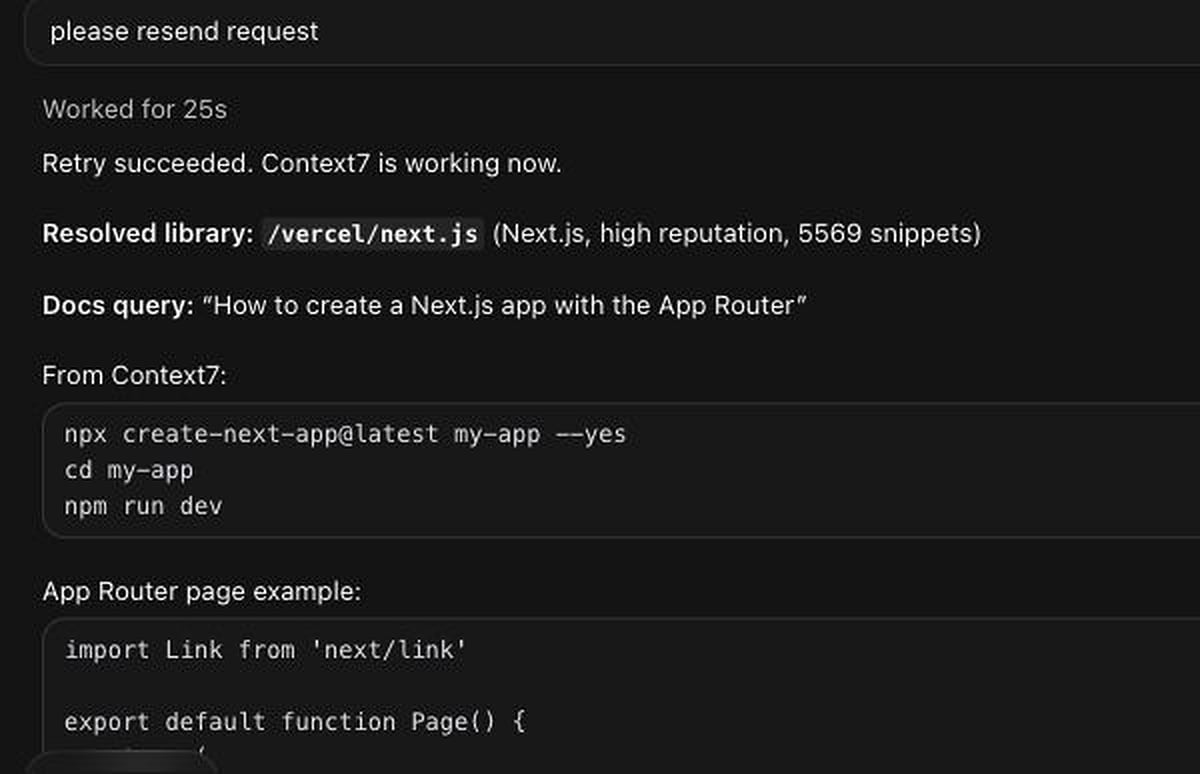
After the API-key header is applied, the same Cloud Agent should be able to resolve a library and return documentation without the anonymous quota error:
Select **Add MCP**. Before starting the run, open **+** → **MCP Servers** again and confirm that `context7-api-key` is enabled.
A green status confirms that Cursor initialized the MCP server. It does not by itself prove that the request was authenticated.
Start a new Cloud Agent run and test both tools:
```text theme={null}
Use Context7 to resolve the library ID for Next.js, then query its documentation
for middleware. Tell me which Context7 tools you called.
```
To verify authentication conclusively, query a private library that belongs to the Context7 account associated with the API key:
```text theme={null}
Use Context7 to query . Summarize its installation docs.
```
If the private library can be read, the Cloud Agent is using the API key. If the agent reports **Monthly quota exceeded** even though the key has quota, the request is reaching Context7 anonymously; recheck the header name and start a new run after saving the MCP server.
After the API-key header is applied, the same Cloud Agent should be able to resolve a library and return documentation without the anonymous quota error:
 ### OAuth and the Context7 Cursor plugin
The Context7 plugin uses the OAuth endpoint and does not currently provide a field for an API key. Cursor supports OAuth for Cloud MCP servers, but installing or enabling the plugin does not guarantee that its OAuth sign-in flow has completed.
* Use the plugin when you want OAuth and complete the sign-in prompt for the same Cursor account that launches the Cloud Agent.
* Use the custom HTTP setup above when you need explicit API-key authentication, including access to private Context7 libraries.
See Cursor's documentation for [custom MCP servers](https://cursor.com/docs/cloud-agent/capabilities#custom-mcp-servers) and [Cloud Agent MCP support](https://cursor.com/docs/cloud-agent#mcp-support).
### Troubleshooting
The request is usually anonymous. Confirm that the custom server URL is `https://mcp.context7.com/mcp`, the header is named `Context7-API-Key`, and the saved value is the current API key. Then enable the server and start a new Cloud Agent run.
A ready status only confirms MCP initialization. Test a private library ID to verify authentication, then confirm that the library belongs to the same Context7 account as the API key.
Open **+** → **MCP Servers** before starting the run and enable `context7-api-key`. If the run was already started, enable the server and create a new run so Cursor can expose its tools to the agent.
Configure the personal HTTP MCP server from the Cloud Agent UI. A local `~/.cursor/mcp.json`, a repository `.cursor/mcp.json`, or a symlink created inside the Cloud Agent VM does not configure the backend-proxied personal HTTP connection.
***
## Tips
Use **global config** (`~/.cursor/mcp.json`) when:
* You want Context7 available in all projects
* You're using a personal API key
Use **project config** (`.cursor/mcp.json`) when:
* The project has specific Context7 requirements
* You want to share the setup with teammates
* Different projects need different API keys
Context7 works well with Cursor's Composer feature. When you're building something that involves external libraries:
1. Start with a prompt that mentions the libraries you need
2. Context7 fetches the relevant docs
3. Composer uses those docs to generate accurate code
This is especially useful for newer library versions that might not be in Cursor's training data.
* Be specific about what you're trying to do, not just which library
* Mention versions when they matter
* If the first result isn't right, ask for a different part of the docs
```
# Good
How do I handle file uploads with the Supabase Storage API?
# Less specific
How does Supabase storage work?
```
### OAuth and the Context7 Cursor plugin
The Context7 plugin uses the OAuth endpoint and does not currently provide a field for an API key. Cursor supports OAuth for Cloud MCP servers, but installing or enabling the plugin does not guarantee that its OAuth sign-in flow has completed.
* Use the plugin when you want OAuth and complete the sign-in prompt for the same Cursor account that launches the Cloud Agent.
* Use the custom HTTP setup above when you need explicit API-key authentication, including access to private Context7 libraries.
See Cursor's documentation for [custom MCP servers](https://cursor.com/docs/cloud-agent/capabilities#custom-mcp-servers) and [Cloud Agent MCP support](https://cursor.com/docs/cloud-agent#mcp-support).
### Troubleshooting
The request is usually anonymous. Confirm that the custom server URL is `https://mcp.context7.com/mcp`, the header is named `Context7-API-Key`, and the saved value is the current API key. Then enable the server and start a new Cloud Agent run.
A ready status only confirms MCP initialization. Test a private library ID to verify authentication, then confirm that the library belongs to the same Context7 account as the API key.
Open **+** → **MCP Servers** before starting the run and enable `context7-api-key`. If the run was already started, enable the server and create a new run so Cursor can expose its tools to the agent.
Configure the personal HTTP MCP server from the Cloud Agent UI. A local `~/.cursor/mcp.json`, a repository `.cursor/mcp.json`, or a symlink created inside the Cloud Agent VM does not configure the backend-proxied personal HTTP connection.
***
## Tips
Use **global config** (`~/.cursor/mcp.json`) when:
* You want Context7 available in all projects
* You're using a personal API key
Use **project config** (`.cursor/mcp.json`) when:
* The project has specific Context7 requirements
* You want to share the setup with teammates
* Different projects need different API keys
Context7 works well with Cursor's Composer feature. When you're building something that involves external libraries:
1. Start with a prompt that mentions the libraries you need
2. Context7 fetches the relevant docs
3. Composer uses those docs to generate accurate code
This is especially useful for newer library versions that might not be in Cursor's training data.
* Be specific about what you're trying to do, not just which library
* Mention versions when they matter
* If the first result isn't right, ask for a different part of the docs
```
# Good
How do I handle file uploads with the Supabase Storage API?
# Less specific
How does Supabase storage work?
```